
Keeping company data safe on phones and tablets doesn’t have to be a headache. Mobile Device Management (MDM) is how organizations set basic safety rules for devices (think: screen lock, encryption, updates) and keep access to work apps in check. Microsoft Intune is Microsoft’s cloud service that delivers MDM (and app-level protection) across iOS/iPadOS, Android, Windows, and macOS. In this post we’ll explain what Intune can manage on corporate devices, a little bit on how it works behind the scenes, which options to choose for different scenarios, and a review an example of a rollout plan so users stay productive while your data stays protected.
What is MDM and why should I care?
Mobile Device Management (MDM) is a set of tools and rules applied to the device itself. You can enforce a passcode, passcode complexity, encrypt storage, push Wi‑Fi/VPN settings, deploy apps, and remotely wipe corporate data from a lost device or, in the case of corporate devices, wipe the device completely.
Microsoft Intune is Microsoft’s cloud platform for managing those devices at scale. Because it’s part of Microsoft 365, you can combine device health checks with Conditional Access so only healthy, compliant devices can reach email, Teams, OneDrive, and other work resources.
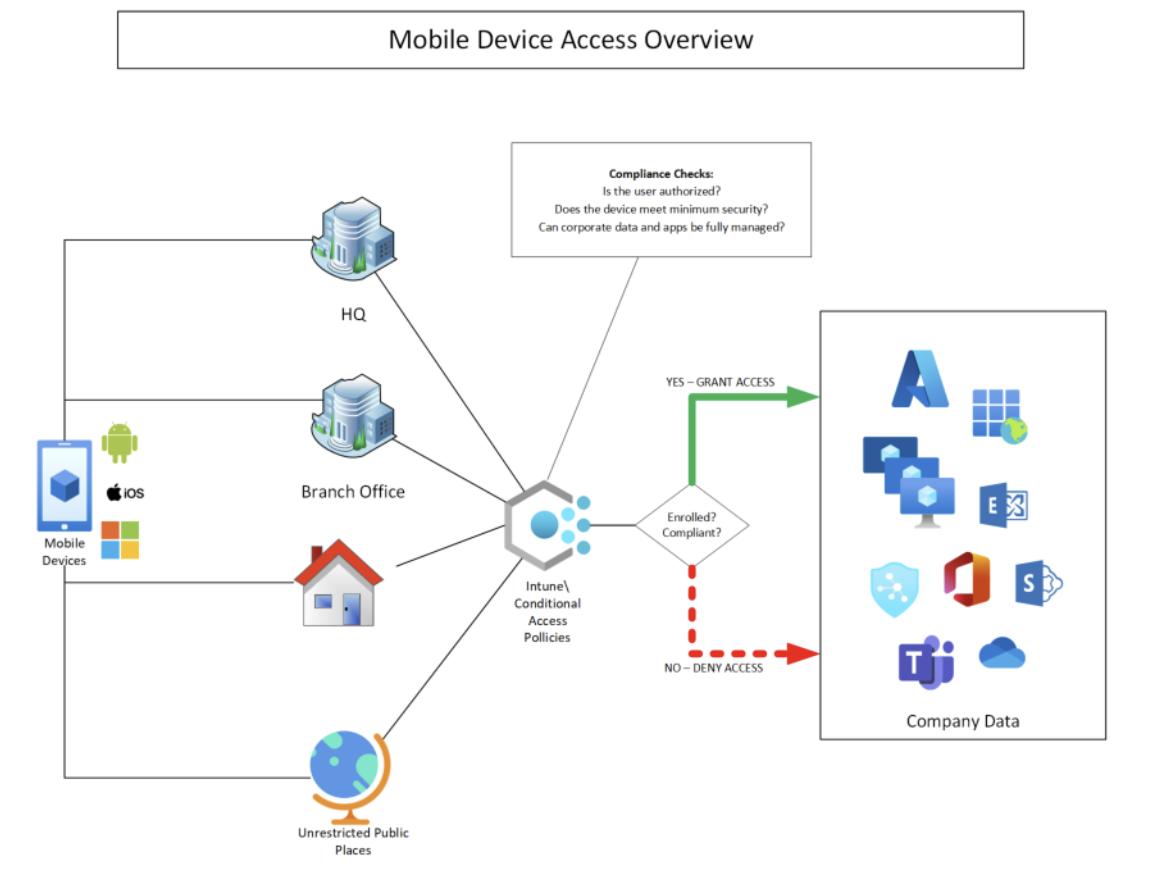
What can IT control with Intune?
Enrollment
To become managed, a device first needs to be enrolled into Intune. This process is straightforward, and users can self-enroll, provided basic instructions. Users download an app and simply sign in with their work account to enroll their devices through the Company Portal (or built-in flows on Windows/macOS).
Compliance policies
These are the standards a device must meet to be considered safe. If a device falls out of compliance, Intune can flag it and limit access until it’s fixed. You can specify a sizeable number of configuration items to check, but among the basic items onboard a phone or tablet which are checked for compliance are: passcode/biometric standards, auto‑lock, minimum OS/security patch levels, jailbreak or root detection\prevention, and whether your device is data-encrypted or has other core protections.
Configuration profiles
Think of these as templates that preconfigure devices so users don’t have to. You push the right settings once, and everyone gets them automatically. Things such as Wi‑Fi and VPN profiles, Email profiles and certificates, device restrictions, developer options, etc. can be “canned” as a configuration set and applied automatically to devices.
App management
IT can centrally install, update, and remove apps so people get what they need without hunting through app stores or calling support. Among the management functions included with Intune is the ability to deploy/retire store apps, line‑of‑business apps, and web apps. You can control update cadence and app versions, and on Android, use a Work Profile to provide “corporate versions” of work apps, while keeping the personal apps separate.
Conditional Access
This feature checks the device’s health and identity signals before letting it gain access to Microsoft 365 and company data. This is the gatekeeper which allows access to Microsoft 365 only from compliant devices, or blocks devices that are out of date, risky, or unmanaged.
Remote actions
If a device is lost, stolen, or being repurposed, you can act quickly to protect company data—no need to physically touch the device. There are differing levels of management depending on whether your devices was issued by your company, or if your device is a personal device. You can perform a full wipe (factory reset) for lost/stolen devices with corporate managed devices. For BYOD, you can perform a selective wipe to remove corporate data and apps only, while leaving personal data fully untouched and intact.
Rolling Out Device Management
Start with a pilot
Begin with a small pilot group to validate the enrollment process and confirm device readiness. Test critical functions like email and app deployment to ensure smooth operation. Use pilot feedback to refine policies before scaling to the wider organization.
Define Compliance Early
Establish clear baseline requirements such as minimum OS version, passcode strength, and encryption. Include jailbreak/root detection to prevent compromised devices from accessing corporate resources. Document compliance standards upfront so users and IT staff know expectations from day one.
Staged Configuration
The first phase of your rollout should focus on baseline security controls and deployment of required core applications. Once these basics are in place, you can introduce Conditional Access, starting in “reportonly” mode before enforcing policies. Finally, once all devices are brought into compliance, all controls can be enforced.
Monitor and Tune
Continuously track noncompliant devices and investigate failed enrollment attempts. Review app installation success rates and measure user impact to identify friction points. Adjust policies iteratively to balance strong security with a seamless user experience.
What about privacy?
On corporate owned devices, use is typically governed by appropriate computer use policies, and personal use of corporate devices should be limited and restricted, or altogether eliminated, as your company can seize or wipe your device at any time. On BYOD devices, it’s critical to be transparent about what IT can and cannot see. IT doesn’t “take over” your personal device, rather IT typically sees device model, OS, compliance state, and installed corporate apps and corporate data only—not personal photos, messages, personal emails, or personal app contents. For a more detailed review, please see Microsoft’s official guidance: What info can your organization see when you enroll your device? - Microsoft Intune | Microsoft Learn
The takeaway
Microsoft Intune gives you the levers to secure corporate mobile devices end‑to‑end: automated enrollment, strong baselines, smart access controls, and fast remote actions when things go wrong. And deployment of Intune is relatively straightforward; start small, lock in your compliance rules, then turn on Conditional Access—your users stay productive while your data stays protected.
FAQ
Do we need MDM if we already protect apps?
Yes. MDM manages the device (updates, Wi‑Fi, certificates, wipe). MAM (app protection) manages the app’s data. Corporate devices benefit from both.
Can users keep personal apps on corporate phones?
Yes, if you allow it. Android separates work and personal. iOS supervised devices can still allow personal use while protecting data.
What happens when someone leaves?
Either factory‑reset the device or do a selective wipe of corporate data, depending on ownership and policy.
Will this slow people down?
Not if you stage the rollout and keep rules reasonable—biometrics allowed, required apps preinstalled, and clear guidance for users.
Why can’t I access company data without Intune on my device?
One of the biggest benefits of using Intune is to enable convenient and secure access to corporate data on mobile devices, and to prevent unrestricted access. Your organization’s security policies ultimately dictate the terms of access.