
Stop Paying for Downtime: Understanding Serverless Architecture with Azure Functions
Does your application code really need to run on a D8_v5 VM when Azure Functions can do it for less?
Virtual machines have been the backbone of cloud infrastructure for good reason. They are highly configurable, stable, and reliable, which makes them a strong fit for predictable workloads that need consistent performance and full control over the environment. They also offer a familiar operating model for teams moving from on premises and they support applications that require custom configurations or OS-level access.
A tradeoff here is operational drag. VMs must be patched, rebooted, and monitored on a regular cadence, and scaling introduces even more work with scale sets, load balancers, and networking that all need to be designed and maintained. That effort adds up; and it often consumes time that would be better spent on features.
There is also an architectural mismatch for modern patterns. Modularity suffers when the default unit of deployment is a long running machine, which can nudge teams toward tightly coupled designs and away from highly modular, event driven, or microservice oriented systems that favor small, rapidly deployable components.
Finally, the cost profile can be unforgiving. VMs are easy to overprovision for spikes and then sit idle for long stretches while the meter keeps running, which is especially painful for intermittent or unpredictable workloads. Even when you scale, you often pay with extra capacity or added configuration complexity that increases both spend and overhead.
Enter Serverless Compute
Serverless computing flips the script by removing some of this complexity and introducing three key advantages.
First, infrastructure management is abstracted away. You do not patch servers, schedule reboots, or chase OS drift because the platform takes care of it; this frees real time even when you have patching automated.
Second, high availability and elastic scaling are built in. Serverless platforms typically run across multiple availability zones by default, so you avoid the heavy lift of designing and maintaining your own availability architecture.
Third, cost efficiency. You pay for execution, not idleness, which lets your application scale to zero when there is no work to do and then ramp instantly when demand returns.
What Are My Options?
By now, you are probably wondering what serverless compute services you can leverage to improve operations in your organization. Among the many serverless services available, Azure Functions is Microsoft’s event-driven compute platform. With Azure Functions, you deploy your code and its dependencies, and the platform takes care of the rest. It can handle thousands of concurrent executions out of the box, integrate seamlessly with services like Storage and Event Grid, and will bill only for the compute time used. No more idle boxes eating at your budget.
You have options for what kind of Azure Function you deploy, and the right one depends on latency, networking, and scale:
On the Flex Consumption plan, Functions scale horizontally with flexible compute choices, VNET integration, and dynamic scale-out up to 1,000 instances, all without server management.
If you need predictable low latency and VNET connectivity, the Premium plan is the sweet spot. Pre-warmed workers eliminate cold starts and give you more powerful instance sizes when your code needs headroom.
Already invested in App Service? The Dedicated (App Service) plan runs Functions alongside your web apps at standard App Service rates, which can simplify operations for teams that want reserved capacity.
Prefer containers? Azure Container Apps can host containerized Function apps for teams that want a fully managed environment utilizing containerization.
When to Choose Azure Functions Over VMs
Before diving into where Azure Functions excel, let’s touch on where they might not be the best choice. If your application is built as a tightly coupled monolith, breaking it into discrete serverless functions can be more trouble than it is worth.
Latency expectations matter too. On the default serverless plans, cold starts can add noticeable delay to the first request after idle periods. If you require consistent, low-latency responses, use the Premium plan with pre-warmed workers; that removes the cold start latency while keeping the operational model of Functions.
Finally, consider your workload’s resource demands. Functions are not designed for heavy compute or large memory footprints, so services with significant resource demands are better suited for virtual machines.
Where Azure Functions Shine
Think event-driven and bursty. Functions are excellent at reacting to things that happen elsewhere: a file lands in Blob Storage, a message hits a queue, an event fires from Event Grid, and your code runs exactly when needed, and then scales to zero when work has been done. If your API traffic is sporadic, that “scale up fast, idle at zero” behavior maps directly to both performance and cost outcomes.
Looking for an easy win? Scheduled jobs like nightly cleanups, weekly reports, monthly archiving are low hanging fruit. These do not need a server chugging along for 8,760 hours a year. A timer trigger does the work and hands the rest back to the platform. And for lightweight microservices; image resizing, link previews, notifications. Functions let you ship small, focused code that integrates easily with other managed services.
Azure Functions in Practice
Let’s take that image resizing scenario from earlier and build a simple example to see what using Azure Functions look like in practice. First, let’s develop a use case scenario.
Scenario: MediaCorp hosts a social media platform and needs to resize user-uploaded images into multiple resolutions for their platform. Instead of deploying a full VM or containerized service, they opt to use Azure Functions.
Workflow:
- A User uploads an image via the site, which is stored in Azure Blob Storage in a container, images-unprocessed.
- An Azure Function is triggered by the blob upload event.
- The function uses a small, lightweight image process library to generate resize versions.
- The function stores the images in a container, images-processed and updates a Cosmos DB database with the metadata on each derivative (dimensions, format, URL, etc.).
Let’s start with some sample code: - import io
- import os
- import uuid
- import logging
- import json
- from datetime import datetime, timezone
- from typing import Tuple # safer across Python versions
- import azure.functions as func
- from PIL import Image, ImageOps
- from azure.storage.blob import BlobServiceClient, ContentSettings
- from azure.core.exceptions import ResourceExistsError
- from azure.cosmos import CosmosClient, PartitionKey, exceptions
- # Load local.settings.json if running locally and not in Azure Functions runtime
- if not os.getenv("FUNCTIONS_WORKER_RUNTIME"):
- settings_file = os.path.join(os.path.dirname(__file__), "local.settings.json")
- if os.path.exists(settings_file):
- with open(settings_file) as f:
- settings = json.load(f)
- for key, value in settings.get("Values", {}).items():
- if key not in os.environ:
- os.environ[key] = value
- # Environment variables (use getenv to avoid KeyError)
- STORAGE_CONN_STRING = os.getenv("STORAGE_CONN_STRING") or os.getenv("AzureWebJobsStorage")
- PROCESSED_CONTAINER = os.getenv("PROCESSED_CONTAINER", "images-processed")
- COSMOS_ENDPOINT = os.getenv("COSMOS_ENDPOINT")
- COSMOS_KEY = os.getenv("COSMOS_KEY")
- COSMOS_DB_NAME = os.getenv("COSMOS_DB_NAME", "cosmosaemsp")
- COSMOS_CONTAINER_NAME = os.getenv("COSMOS_CONTAINER_NAME", "imageDerivatives")
- SIZES = {
- "thumb": (150, 150),
- "medium": (640, 640),
- "large": (1280, 1280),
- }
- # Fail fast if critical settings are missing
- if not STORAGE_CONN_STRING:
- raise RuntimeError("Missing STORAGE_CONN_STRING or AzureWebJobsStorage app setting")
- if not COSMOS_ENDPOINT or not COSMOS_KEY:
- raise RuntimeError("Missing COSMOS_ENDPOINT or COSMOS_KEY app settings")
- # Initialize clients
- blob_service_client = BlobServiceClient.from_connection_string(STORAGE_CONN_STRING)
- processed_container_client = blob_service_client.get_container_client(PROCESSED_CONTAINER)
- try:
- processed_container_client.create_container()
- except ResourceExistsError:
- pass
- cosmos_client = CosmosClient(COSMOS_ENDPOINT, COSMOS_KEY)
- cosmos_db = cosmos_client.create_database_if_not_exists(COSMOS_DB_NAME)
- cosmos_container = cosmos_db.create_container_if_not_exists(
- id=COSMOS_CONTAINER_NAME, partition_key=PartitionKey(path="/id")
- )
- app = func.FunctionApp(http_auth_level=func.AuthLevel.FUNCTION)
- def _normalize_format_and_mode(img: Image.Image, target_ext: str) -> Tuple[Image.Image, str, str, str]:
- """
- Returns (image, format_str, content_type, normalized_ext).
- """
- ext = target_ext.lower().lstrip(".")
- if ext in ("jpg", "jpeg"):
- fmt = "JPEG"
- content_type = "image/jpeg"
- if img.mode not in ("RGB", "L"):
- img = img.convert("RGB")
- norm_ext = ".jpg"
- elif ext == "png":
- fmt = "PNG"
- content_type = "image/png"
- norm_ext = ".png"
- elif ext == "webp":
- fmt = "WEBP"
- content_type = "image/webp"
- norm_ext = ".webp"
- else:
- # Default to source format, else PNG
- fmt = (img.format or "PNG").upper()
- if fmt == "JPEG" and img.mode not in ("RGB", "L"):
- img = img.convert("RGB")
- content_type = f"image/{fmt.lower()}" if fmt else "application/octet-stream"
- norm_ext = ".jpg" if fmt == "JPEG" else ".png"
- return img, fmt, content_type, norm_ext
- def _get_base_and_ext(name: str) -> tuple[str, str]:
- base = os.path.basename(name)
- if "." in base:
- stem, ext = base.rsplit(".", 1)
- return stem, "." + ext
- return base, "" # let normalizer set a sane extension
- def _resize_image(original: Image.Image, max_w: int, max_h: int) -> Image.Image:
- img = ImageOps.exif_transpose(original.copy())
- img.thumbnail((max_w, max_h), Image.LANCZOS)
- return img
- def _upload_blob_bytes(container_name: str, blob_name: str, data: bytes, content_type: str) -> dict:
- blob_client = blob_service_client.get_blob_client(container=container_name, blob=blob_name)
- blob_client.upload_blob(
- data,
- overwrite=True,
- content_settings=ContentSettings(content_type=content_type),
- )
- props = blob_client.get_blob_properties()
- return {
- "url": blob_client.url,
- "sizeBytes": props.size,
- "eTag": props.etag,
- "lastModified": props.last_modified.isoformat(),
- }
- @app.function_name(name="image_resizer")
- @app.blob_trigger(
- arg_name="input_blob",
- path="images-unprocessed/{name}",
- connection="STORAGE_CONN_STRING",
- )
- def image_resizer(input_blob: func.InputStream) -> None:
- name = input_blob.name.split('/')[-1] # Extract filename from blob path
- logger = logging.getLogger("image_resizer")
- logger.info("Triggered for blob: %s (size: %s bytes)", input_blob.name, input_blob.length)
- try:
- data = input_blob.read()
- img = Image.open(io.BytesIO(data))
- except Exception as e:
- logger.exception("Failed to open image: %s", e)
- return
- original_format = (img.format or "").upper()
- source_ct = f"image/{original_format.lower()}" if original_format else "application/octet-stream"
- stem, ext = _get_base_and_ext(name)
- doc_id = str(uuid.uuid4())
- now = datetime.now(timezone.utc).isoformat()
- result_doc = {
- "id": doc_id,
- "sourceBlobName": name,
- "sourceLength": input_blob.length,
- "sourceFormat": original_format or "UNKNOWN",
- "sourceContentType": source_ct,
- "createdAt": now,
- "variants": [],
- }
- for label, (max_w, max_h) in SIZES.items():
- try:
- resized = _resize_image(img, max_w, max_h)
- out_img, fmt, ct, norm_ext = _normalize_format_and_mode(resized, ext or ".png")
- out_bytes = io.BytesIO()
- save_kwargs = {}
- if fmt == "JPEG":
- save_kwargs.update(quality=90, optimize=True)
- elif fmt == "WEBP":
- save_kwargs.update(quality=80, method=6)
- out_img.save(out_bytes, fmt, **save_kwargs)
- out_bytes.seek(0)
- out_blob_name = f"{stem}_{label}{norm_ext}"
- upload_info = _upload_blob_bytes(
- PROCESSED_CONTAINER, out_blob_name, out_bytes.getvalue(), ct
- )
- result_doc["variants"].append({
- "label": label,
- "width": out_img.width,
- "height": out_img.height,
- "contentType": ct,
- "format": fmt,
- "blobName": out_blob_name,
- "url": upload_info["url"],
- "sizeBytes": upload_info["sizeBytes"],
- "eTag": upload_info["eTag"],
- "lastModified": upload_info["lastModified"],
- "createdAt": now,
- })
- logger.info("Uploaded variant %s -> %s", label, upload_info["url"])
- except Exception as e:
- logger.exception("Failed to process/upload variant '%s': %s", label, e)
- try:
- cosmos_container.upsert_item(result_doc)
- logger.info("Upserted Cosmos DB doc id: %s with %d variants", doc_id, len(result_doc["variants"]))
- except exceptions.CosmosHttpResponseError as e:
- logger.exception("Cosmos DB upsert failed: %s", e)
Notice the @app.blob_trigger decorator. This decorator allows the function to run when a blob upload has completed.
Now let’s get started with deploying our function app. Our prerequisites are python, a code editor and Azure Functions Core Tools.
Let’s first define some variables:
export LOCATION="eastus"
export RG="rg-mediacorp-img" # Keep names lowercase; storage must be <=24 chars, letters+digits only
export RND=$(printf "%05d" $RANDOM)
export STORAGE="stmediacorp${RND}"
export FUNC="func-mediacorp-img-${RND}"
export COSMOS="cosmos-mediacorp-${RND}"
export DB="MediaCorp"
export COLL="Images"
RG=rg-mediacorp-img
LOCATION=eastus
STORAGE=stmediacorp$RANDOM # Needs to be globally unique, lowercase, <=24 chars
FUNC=func-mediacorp-img-$RANDOM # Needs to be globally unique
COSMOS=cosmos-mediacorp-$RANDOM #Needs to be globally unique
DB=MediaCorp
COLL=Images
Then we can create our resource group:
az group create -n "$RG" -l "$LOCATION"
With our resource group created, let’s start deploying some of the resources:
az storage account create -g "$RG" -n "$STORAGE" -l "$LOCATION" --sku Standard_LRS --kind StorageV2 # Create ingress/egress containers (requires data-plane RBAC like “Storage Blob Data Contributor”)
# Get storage connection string for data-plane operations STORAGE_CONN=$(az storage account show-connection-string -g "$RG" -n "$STORAGE" --query connectionString -o tsv)
# Create ingress/egress containers using the connection string (no RBAC needed) az storage container create --name images-unprocessed --connection-string "$STORAGE_CONN" >/dev/null az storage container create --name images-processed --connection-string "$STORAGE_CONN" >/dev/null
# Database and container (partition key = /id to match your documents) az cosmosdb sql database create -g "$RG" -a "$COSMOS" -n "$DB" >/dev/null az cosmosdb sql container create -g "$RG" -a "$COSMOS" -d "$DB" -n "$COLL" \ --partition-key-path "/id" \ --throughput 400 >/dev/null az cosmosdb sql container create \ -g $RG -a $COSMOS -d $DB -n $COLL \ --partition-key-path "/originalFile" \ --throughput 400 # Get Cosmos connection string for app settings
Endpoint and key for app settings COSMOS_ENDPOINT=$(az cosmosdb show --name "$COSMOS" --resource-group "$RG" --query documentEndpoint -o tsv) COSMOS_KEY=$(az cosmosdb keys list --name "$COSMOS" --resource-group "$RG" --query primaryMasterKey -o tsv)
With the prep work finished, let’s finally deploy our function app with the below command:
az functionapp create \ --resource-group "$RG" \ --consumption-plan-location "$LOCATION" \ --runtime python --runtime-version 3.12 \ --functions-version 4 \ --name "$FUNC" \ --storage-account "$STORAGE"
We can configure app settings for the function app like so:
az functionapp config appsettings set -g "$RG" -n "$FUNC" --settings \ AzureWebJobsStorage="$STORAGE_CONN" \ STORAGE_CONN_STRING="$STORAGE_CONN" \ PROCESSED_CONTAINER="images-processed" \ COSMOS_ENDPOINT="$COSMOS_ENDPOINT" \ COSMOS_KEY="$COSMOS_KEY" \ COSMOS_DB_NAME="$DB" \ COSMOS_CONTAINER_NAME="$COLL" \ FUNCTIONS_WORKER_RUNTIME="python" \ AzureFunctionsJobHost__logging__logLevel__Default="Information" >/dev/null
Finally, let’s publish our function app.
func azure functionapp publish "$FUNC" --python --build remote
Now that we’ve published our function, let’s give it a whirl. We can start by uploading a file to blob storage to trigger the function.
az storage blob upload \ --account-name <storage> \ --container-name images-unprocessed \ --name sample.jpg \ --file ./sample.jpg \ --auth-mode login
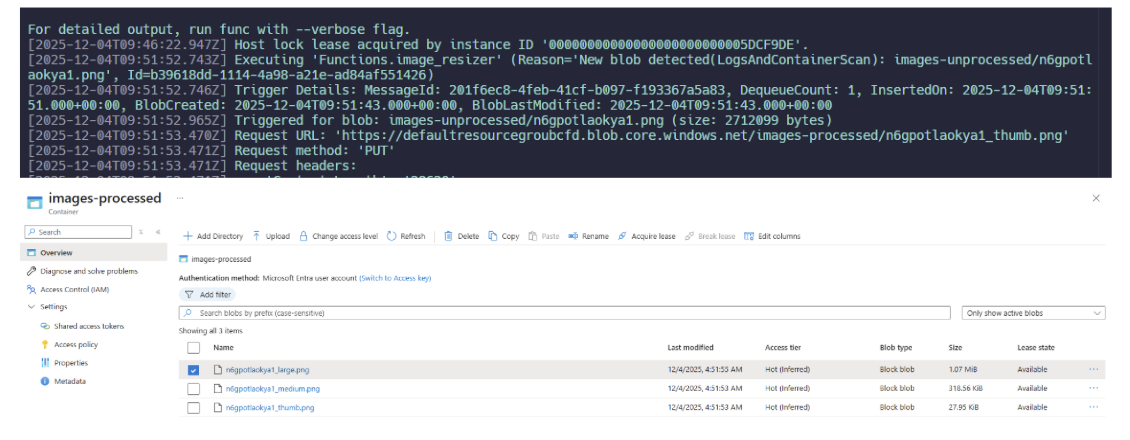
Within a few seconds, we should see our function fire and the resized files in the images-processed container should finish uploading:
Conclusion
Moving targeted workloads to Azure Functions lets you stop paying for idle capacity while gaining elasticity, simpler operations, and a cleaner path to modular, eventdriven design. For bursty APIs, scheduled jobs, and filedriven pipelines like the image resizing example, serverless compute delivers the right resources at the right time and zero when there is nothing to do. Our recommendation is to start with a low risk candidate, deploy on the Consumption plan, instrument with Application Insights, and measure before/after cost and latency. If you need consistent low latency or private networking, shift to the Premium plan with prewarmed instances. The result is the same: fewer servers to manage, faster delivery, and a bill that reflects execution, not downtime.